Connectors
A connector is a reusable import configuration that brings data from a source, such as an Excel file, a CSV file, or a database, into a cohort. It follows the ETL (extract, transform, load) pattern: it defines how data is read from the source, which transformations are applied (for example, converting weight from pounds to kilograms or renaming categories), and how the resulting fields are mapped to the cohort's schema. Running a connector loads new records or updates existing records without requiring the configuration to be recreated for every import.
How a connector works
The animation follows three example patients from a CSV file into a cohort. Select a step to pause on it.
Data stays where it already lives
A connector starts at an existing source: a CSV or Excel export, a ZIP archive with several files, or a database queried read-only with an SQL SELECT. The source itself is never modified.
PatID;Gender;Weight_lbs;Diag
P-001;m;176;I10
P-002;f;?;E11.9
P-003;F;141;XYZ
| Component | Purpose |
|---|---|
| Data source | Holds the original data: a CSV or Excel file, a ZIP archive, or a database queried with a read-only SQL SELECT. |
| Extractor | Reads the source into one table of named columns and rows, merging multiple files or sheets on a shared identifier. |
| Transformer | Optionally converts values into the representation the schema expects, using built-in transformations or app tools. |
| Mapper | Links each column to a schema field and validates every value. Invalid values are rejected individually. |
| Cohort | Receives the result when the connector runs: new patients are added and existing patients are updated. |
The extractor, transformer, and mapper settings together form the saved connector. Saving a connector imports nothing; data moves only when the connector runs.
Connector overview
Open a cohort and select Connector to view its connectors. The overview shows each connector's name, source type, and latest run, including its completion status. Select a connector's name or View to open its configuration and run history.
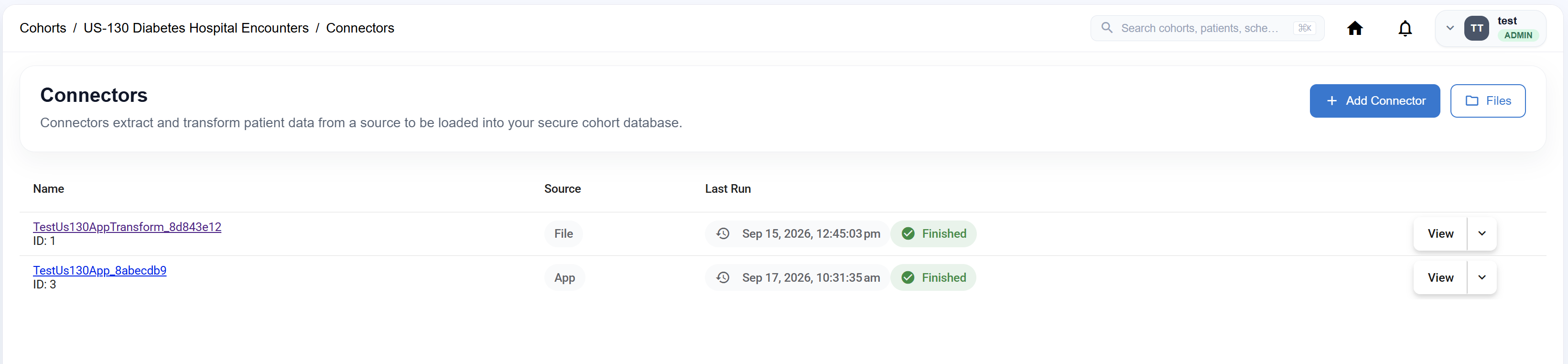
Select Files to view files uploaded to the cohort. These files can be selected when configuring or running file-based connectors.
Add a connector
Select Add Connector from the connector overview. The dialog provides two ways to add a connector:
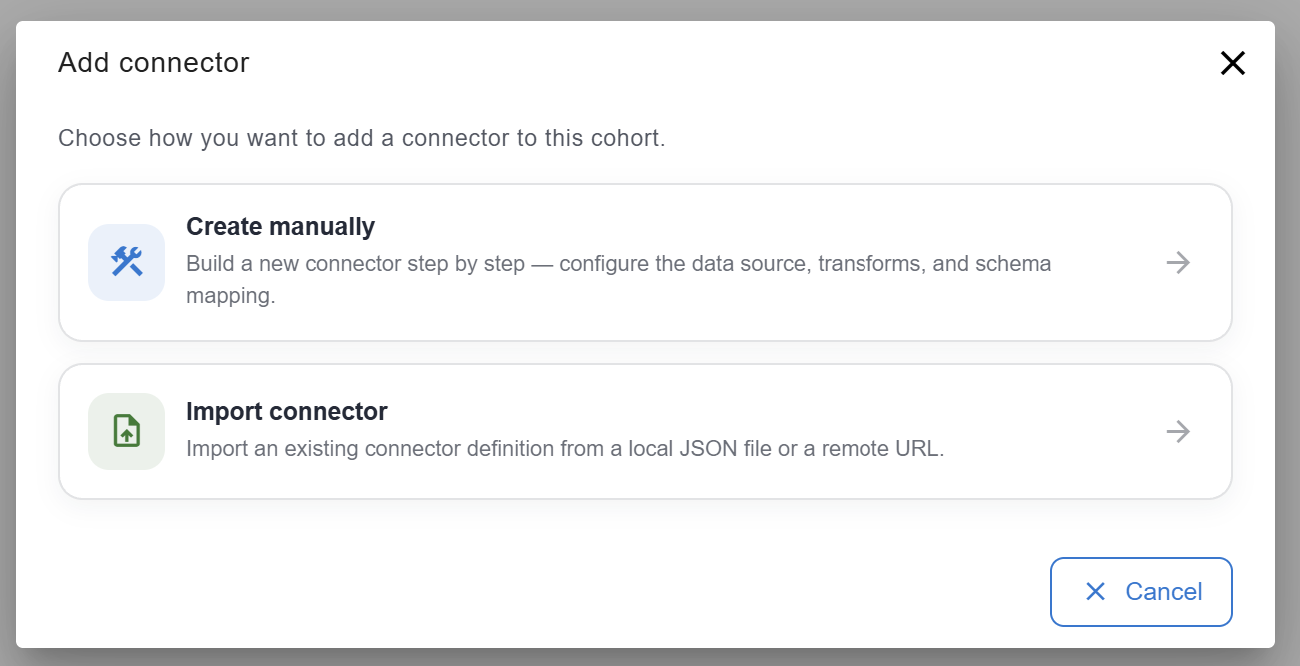
- Create a connector from scratch to configure the data source, transformations, and schema mapping step by step.
- Import an existing connector to create a connector from a reusable JSON definition.
Creating or importing a connector saves its configuration. Data is added to the cohort when you run the connector to import data.