Import data by running a connector
Creating or importing a connector saves its ETL configuration. You can then add or update patient data by running the connector with a compatible data source.
Without options, the connector reads its configured source, adds new patients, and updates existing ones. Patients that are not in the source stay in the cohort.
- New
- Patients from the source that are not in the cohort yet.
- Updated
- Existing patients whose values changed.
- Unchanged
- Patients that are kept as they are.
Open and run the connector
- Open the cohort and select Connector.
- Open the connector you want to run.
- Review its source and configuration summary, then select Run.
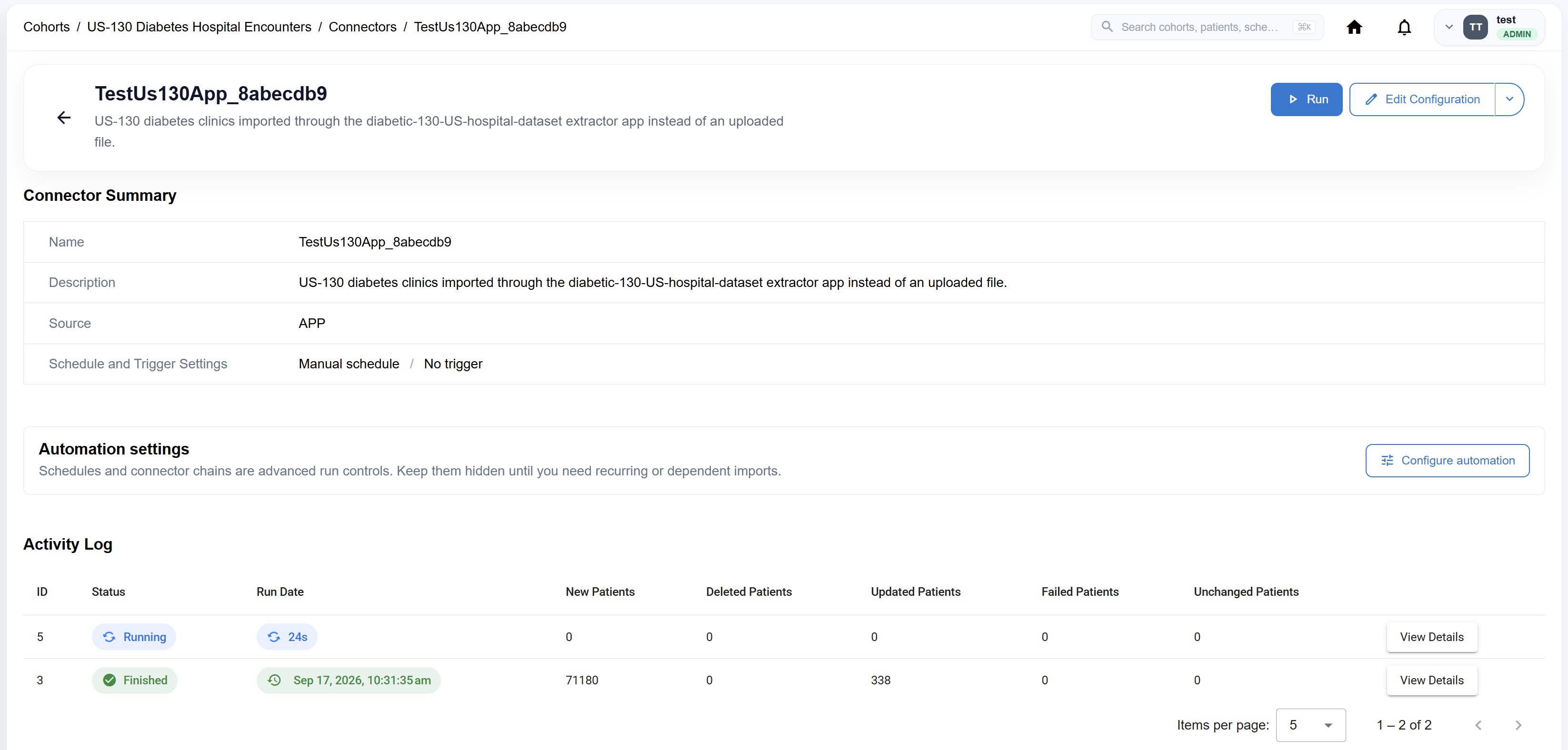
The connector detail page also contains an Activity Log. Each run reports its status, execution date, and the numbers of new, deleted, updated, failed, and unchanged patients. Select View Details to inspect a run.
Configure the import
The run dialog determines how the connector uses its source and how the imported data affects the cohort. If no option is selected, the connector runs against its configured source and adds or updates the patients contained in that source while retaining other patients already in the cohort.
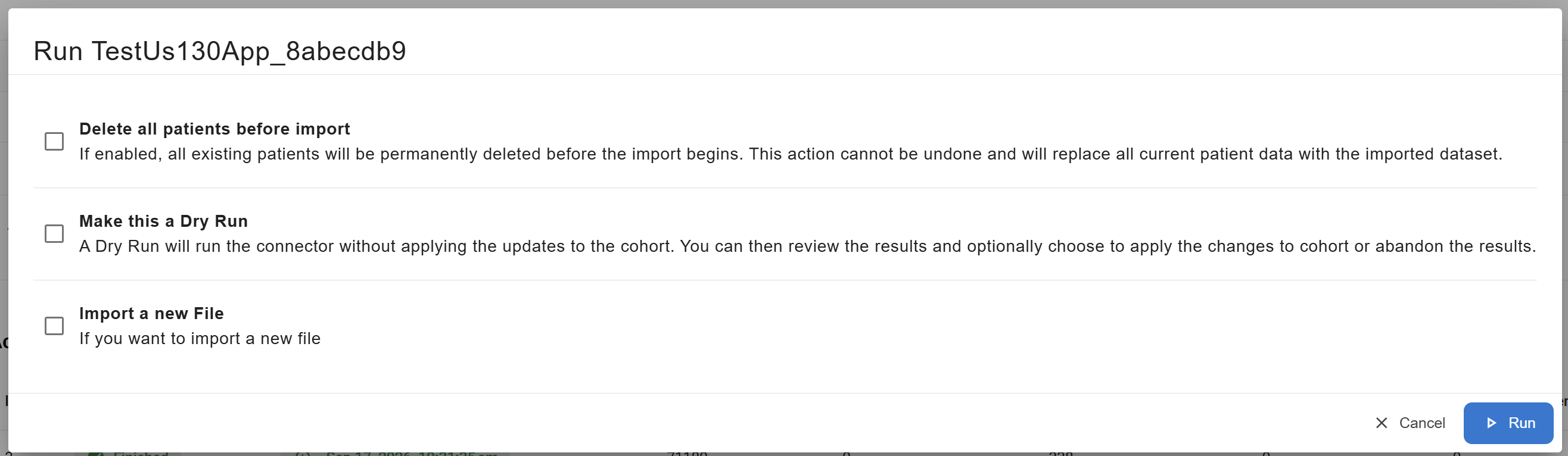
| Option | Description |
|---|---|
| Delete all patients before import | Permanently deletes all existing patients before importing the source, replacing the cohort's current patient data with the imported dataset. |
| Make this a Dry Run | Executes the connector without applying changes to the cohort. The results can be reviewed before deciding whether to apply or abandon them. |
| Import a new File | Selects a new compatible source file for this run of a file-based connector. |
Enable Delete all patients before import only when the incoming source is intended to replace the complete cohort dataset. For a new connector or source file, use a dry run first to identify extraction, transformation, mapping, or validation problems without changing cohort data. Select Run to start the execution.
Review the result
After execution, select View Details for the run in the connector's activity log. The detail page contains a run summary and an entity overview showing the numbers of new, updated, deleted, failed, and unchanged patients.
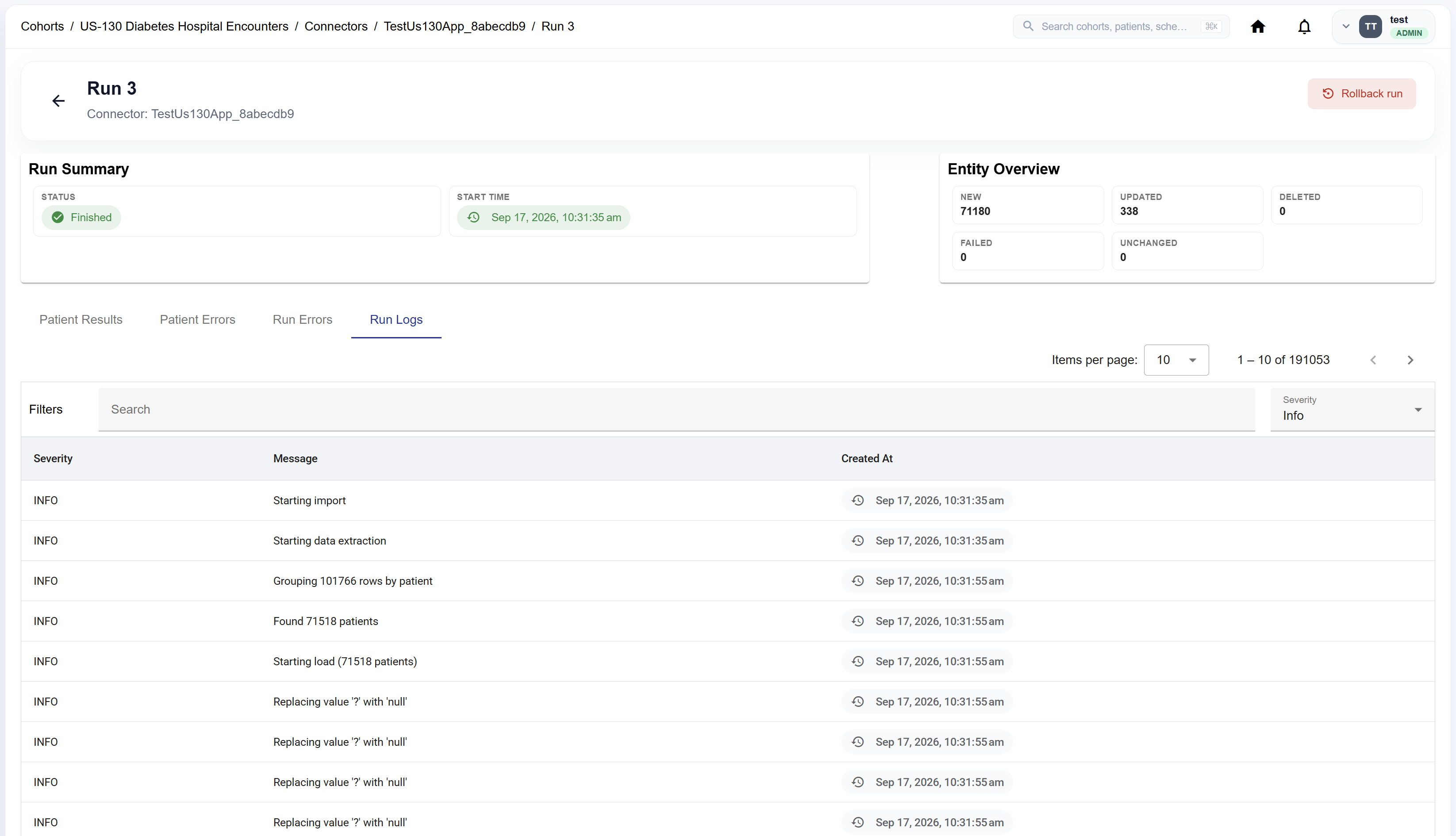
A completed status only confirms that the execution finished. It does not mean that all data was imported. After every import, check all four tabs to see whether there are errors that must be addressed:
| Tab | What to check |
|---|---|
| Patient Results | The patients processed by the run, with the time of processing, whether the result was committed to the cohort, whether it was part of a dry run, and the user who ran the connector. Use the entity overview for the numbers of new, updated, deleted, failed, and unchanged patients. |
| Patient Errors | Values that were rejected during validation, listed by patient ID, field, and error message. Rejected values are not imported, while the patient's other valid values are. |
| Run Errors | Problems that affected the execution of the run as a whole rather than individual patients. |
| Run Logs | The detailed execution log of the run. The logs can be searched and filtered by severity. |
Pay particular attention to Patient Errors. A run can complete successfully while many individual values were rejected, and these values are missing from the cohort until the problem is fixed.
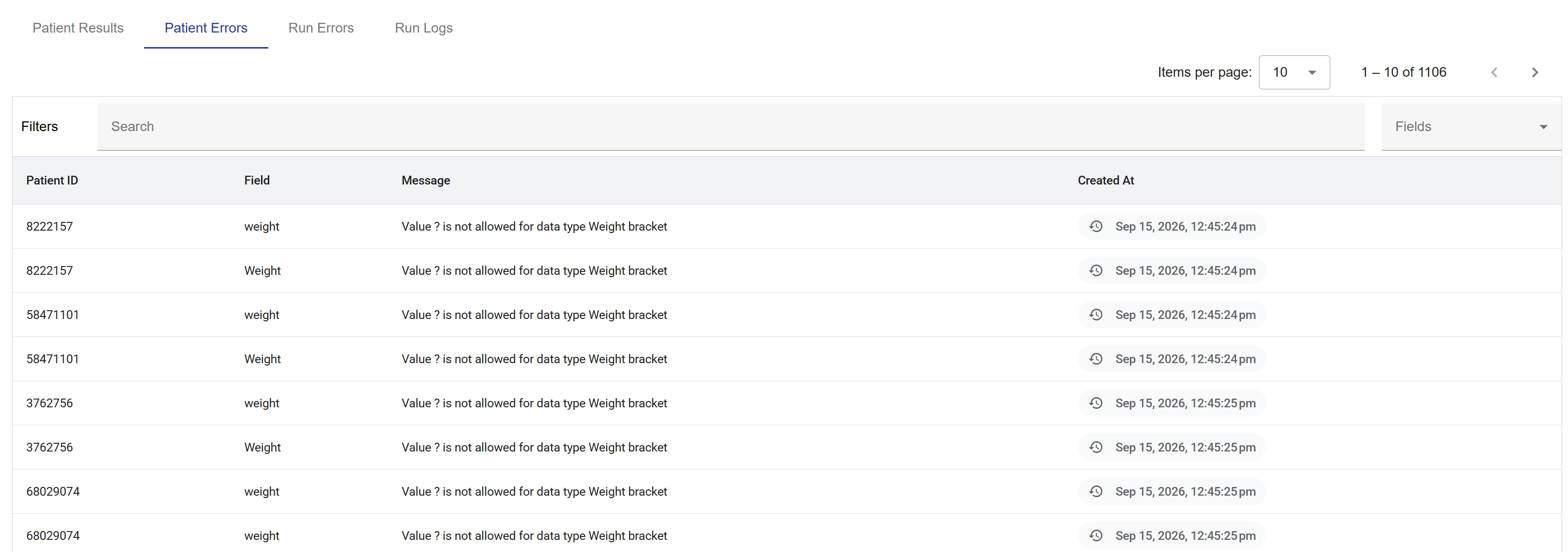
In this example, the source file uses ? to indicate an unknown weight. Because ? is not a valid value for the weight field, it is rejected for every affected patient. To fix such errors, correct the source data or adjust the connector's transformations (for example, convert placeholder values such as ? to empty values), then run the connector again.
For accepted values and error handling, see Data validation and normalization.