Access management
Data in your Client is organized into cohorts. Permissions control who can train on the data of a cohort and how your Client participates in queries and requests for that cohort. A permission defines:
- Whether federated queries are answered, how often they may arrive, and the minimum number of records a query or statistics result must contain.
- Whether each type of request is accepted automatically, rejected automatically, or left for manual review in the Requests menu.
- The period during which the permission is valid.
Permission list
Open Governance → Access Management to see the permissions of all cohorts. The same list, limited to a single cohort, is available in the Access management tab of that cohort.

Add a permission
- Open Governance → Access Management, or the Access management tab of a cohort.
- Select Add Permission. The permission dialog opens.
- Complete the fields as described in Permission settings.
- Select Create to save the permission, or Cancel to discard it.
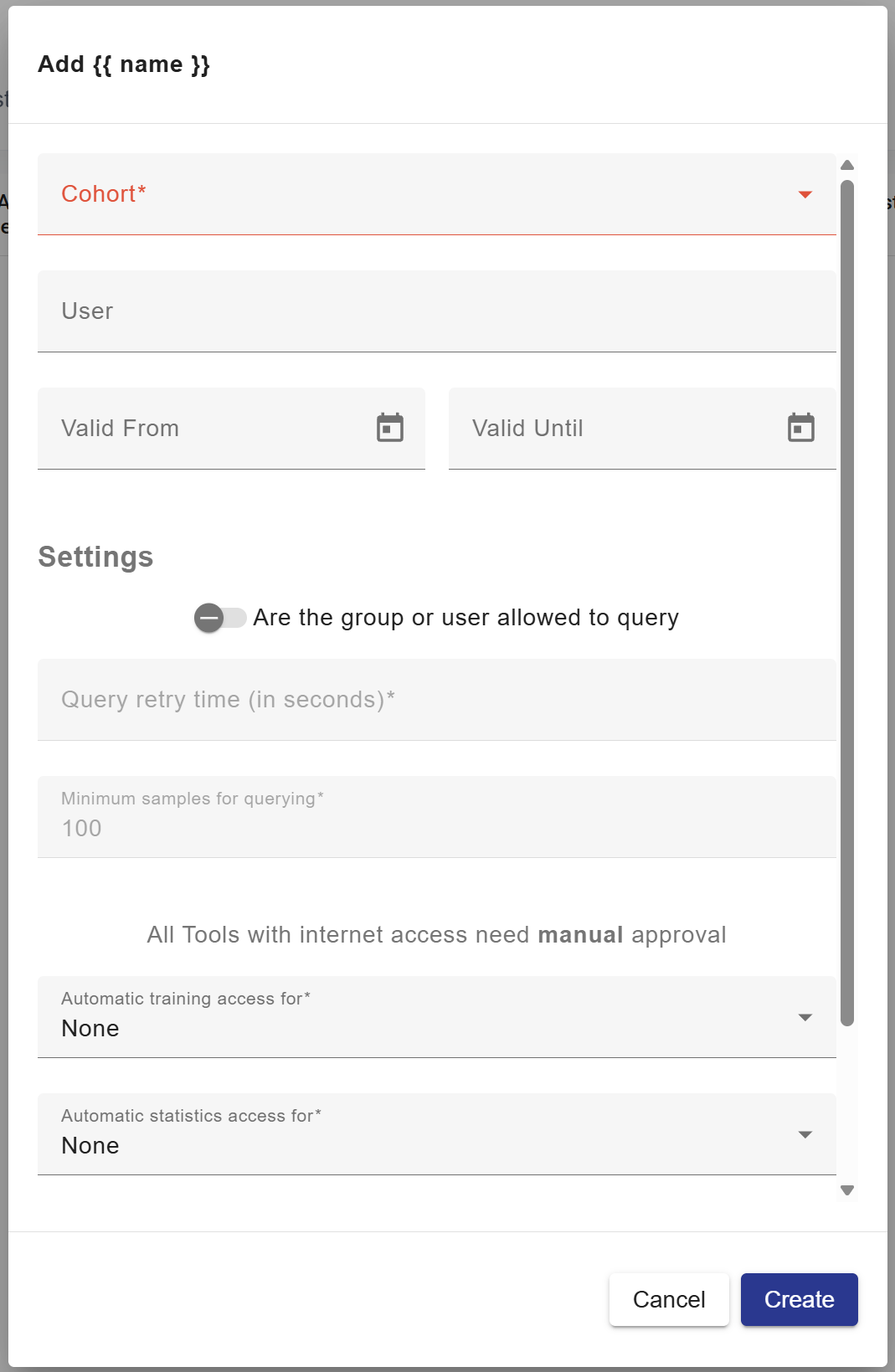
To change a permission, select the edit icon in its row. To remove it, select the delete icon.
Permission settings
| Setting | What it controls |
|---|---|
| Cohort | The cohort the permission applies to. Each permission covers exactly one cohort. |
| User | The user the permission applies to. Leave empty to apply it to any user. |
| Valid From / Valid Until | The period during which the permission applies. Leave empty for no time limit. |
| Are the group or user allowed to query | Whether the user may run federated queries on this cohort. Queries have no approval step; once enabled, they are safeguarded only by the query retry time and minimum sample count below. |
| Query retry time (in seconds) | The minimum time that must pass between queries. Queries arriving too fast are rejected. |
| Minimum samples for querying | The minimum number of records a query must return. Queries matching fewer records are rejected. This threshold also applies to statistics requests, so a category with only 50 records under a threshold of 100 returns 0, not 50. |
| Automatic training access for | None leaves all training requests for manual review. Certified Tools automatically approves training requests that use certified tools; All also covers uncertified tools. Exception: a tool requesting network access outside the federated learning channel always requires manual approval, regardless of this setting. This protects your Client from data exfiltration. |
| Automatic statistics access for | None leaves statistics requests for manual review. All approves them automatically. |
| Automatic metrics access for | None leaves metrics requests for manual review. All approves them automatically. See Metrics requests for who may submit them. |
Which variables of a cohort can be queried, and how, is set separately in the cohort's Queriability tab. See Cohorts.
How permissions decide the outcome
The settings above determine what happens when a query or request arrives:
| Type | Rejected automatically | Left for manual review | Accepted automatically |
|---|---|---|---|
| Query | Queries are not allowed, the query retry time has not passed, or the query matches fewer records than the minimum. | Never. Queries have no manual review step. | Queries are allowed. Disclosure controls are applied to the result. |
| Statistics request | — | Automatic statistics access for is None. | Automatic statistics access for is All. Disclosure controls are applied to the result. |
| Training request | — | Automatic training access for is None, the tool is not covered by the selected option, or the tool requests internet access. | The tools used are covered by Automatic training access for (Certified Tools or All). |
| Metrics request | — | Automatic metrics access for is None. | Automatic metrics access for is All. |
Requests left for manual review appear in the Requests menu, where a Data Access Manager accepts or rejects them.
You can create as many permissions as you need. If more than one permission applies to the same request, the most permissive one wins. For example, if a permission for all users sets Automatic statistics access for to All and another permission for a specific user sets it to None, that user's statistics requests are still approved automatically.
Deployment settings
Some access controls are configured when the Client is deployed rather than in its interface. See Deploy your client.
Automatic approval
For each of statistics, training, and metrics requests, the deployment configuration decides whether automatic approval is available on the Client at all. If it is disabled for a request type, the corresponding Automatic … access for setting has no effect, and all requests of that type require manual approval in the Requests menu.
Federated queries are not affected by this setting. They are always evaluated automatically against the cohort's permissions, and the configured disclosure controls are applied.
Default permission for new cohorts
You can optionally configure a default permission that is created automatically whenever a new cohort is added to the Client. It supports the same settings as described in Permission settings.